

1
Create an account
Go to app.kinse.io and open Create an account. Enter your full name and email, then choose Continue.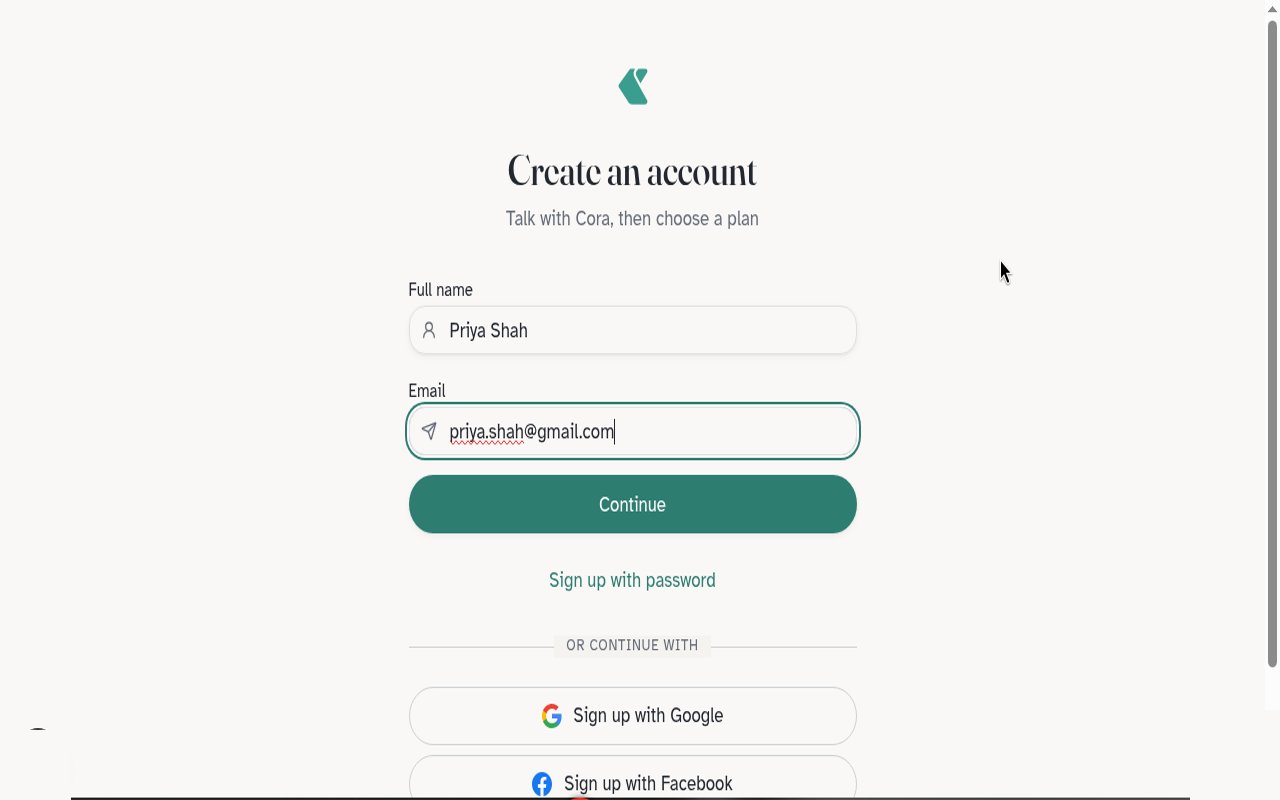
2
Check your email
Kinse sends a 6-digit code. Enter it on Check your email, then choose Verify code.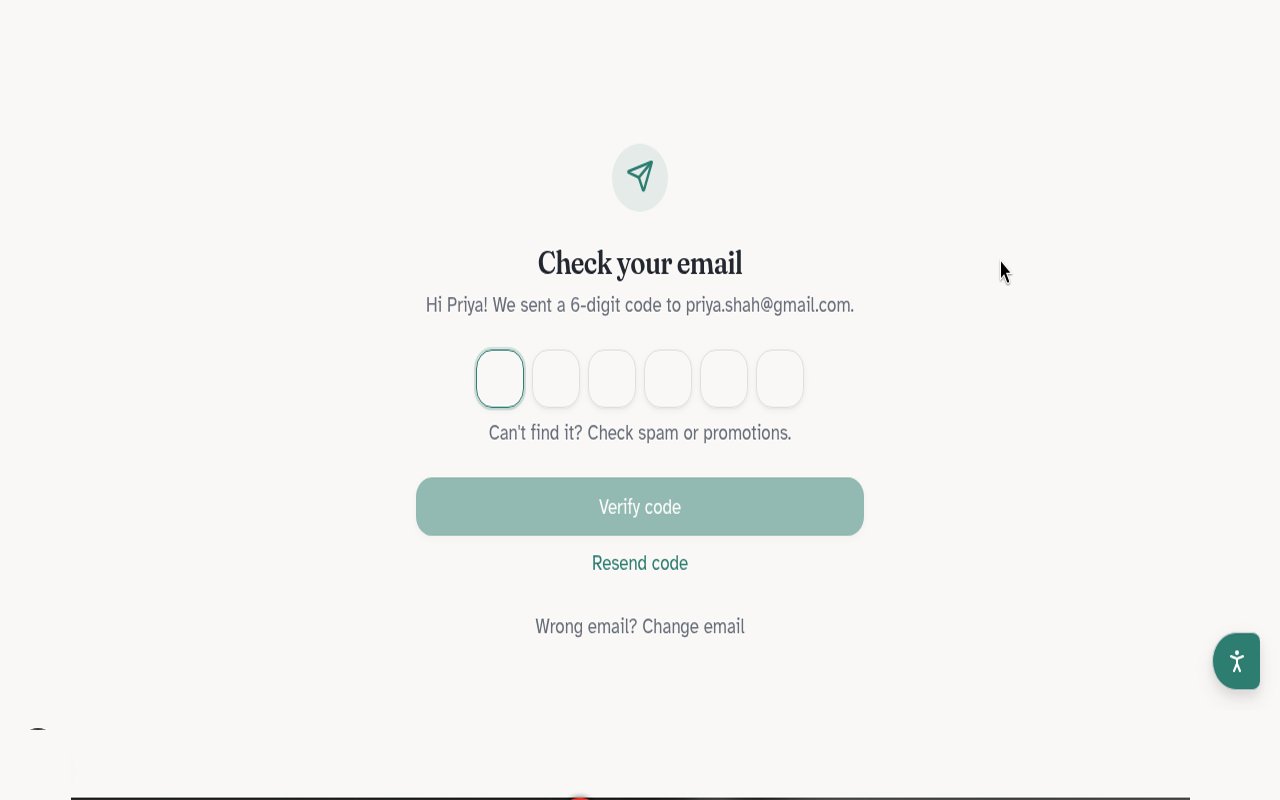
3
Who will Cora be calling?
Setup asks Who will Cora be calling?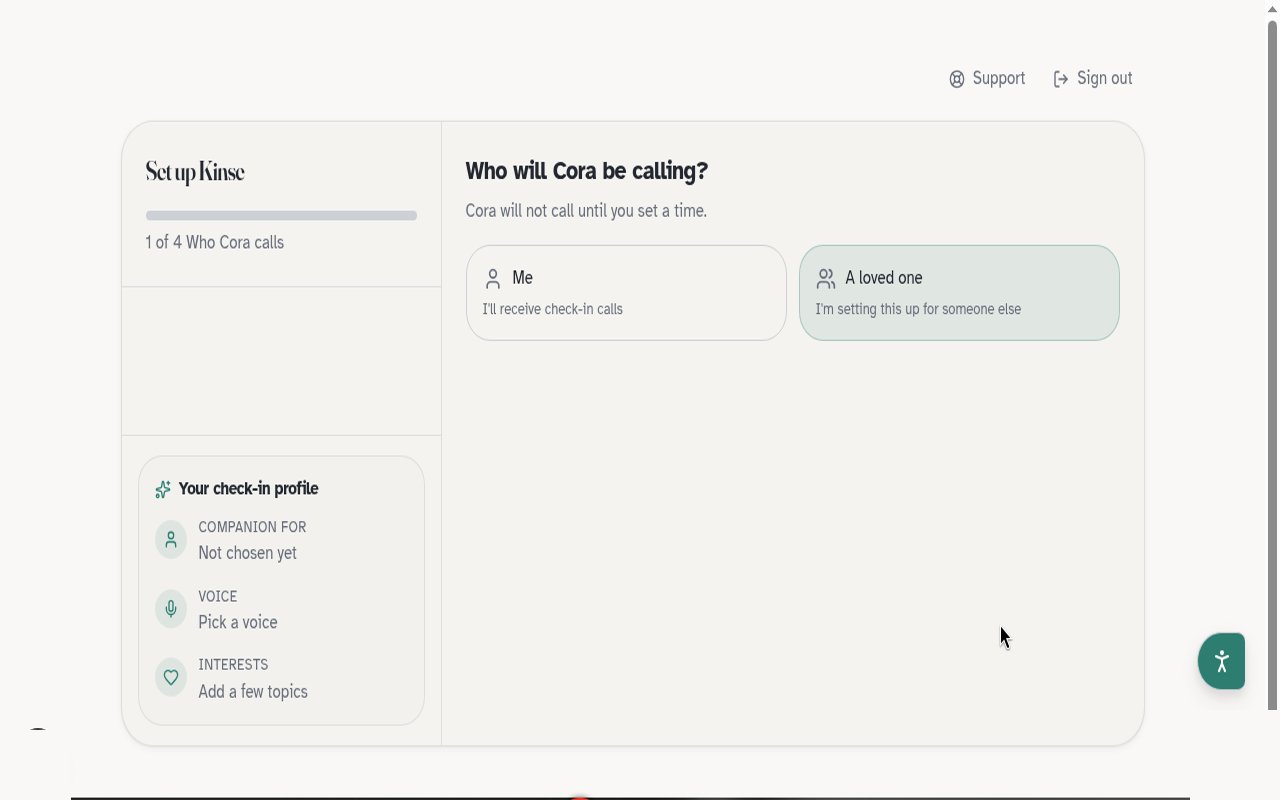
- Me: I’ll receive check-in calls
- A loved one: I’m setting this up for someone else
4
Their details
On Their details (or your details if you chose Me), enter Full name, phone number, and timezone. Preferred name is optional.This number is who Cora calls. You pick the time later.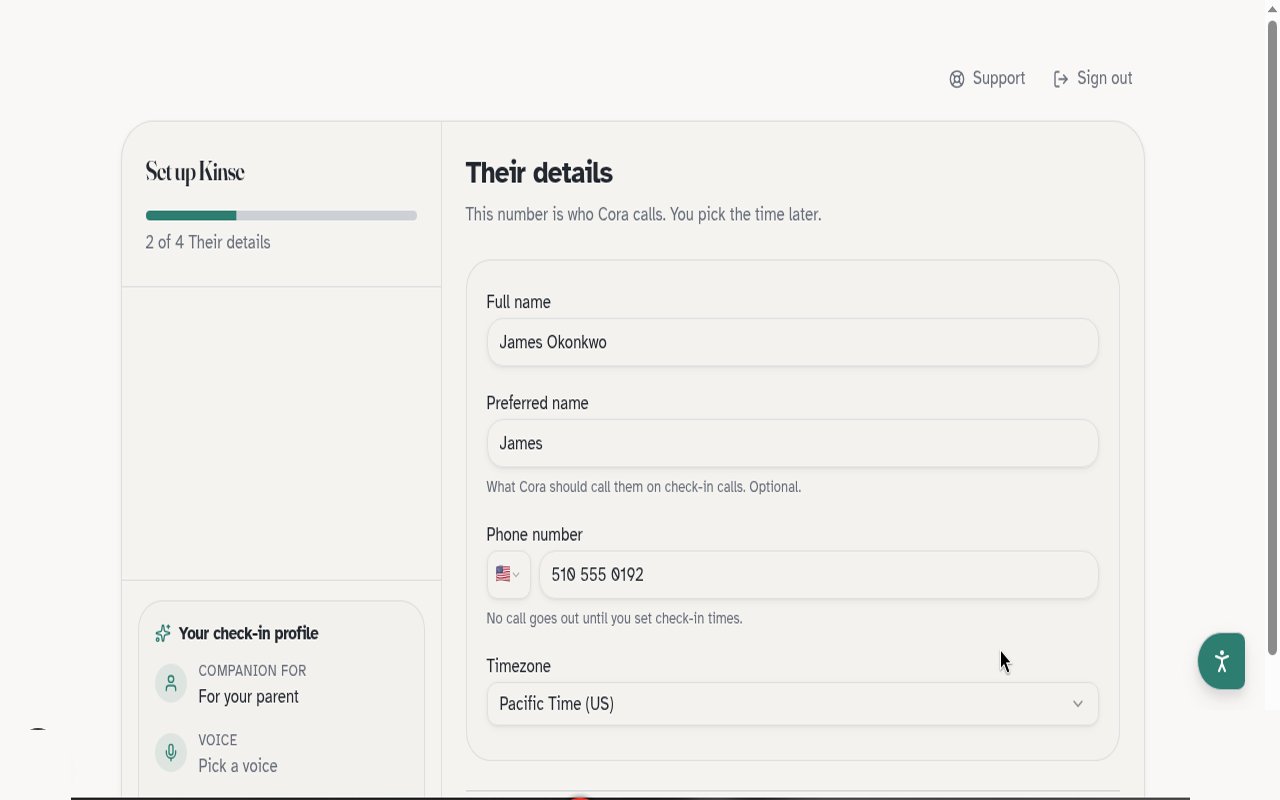
5
Choose how Cora sounds
On Choose how Cora sounds, pick Voice 1 through Voice 6. You can change this later under Calls → Voice.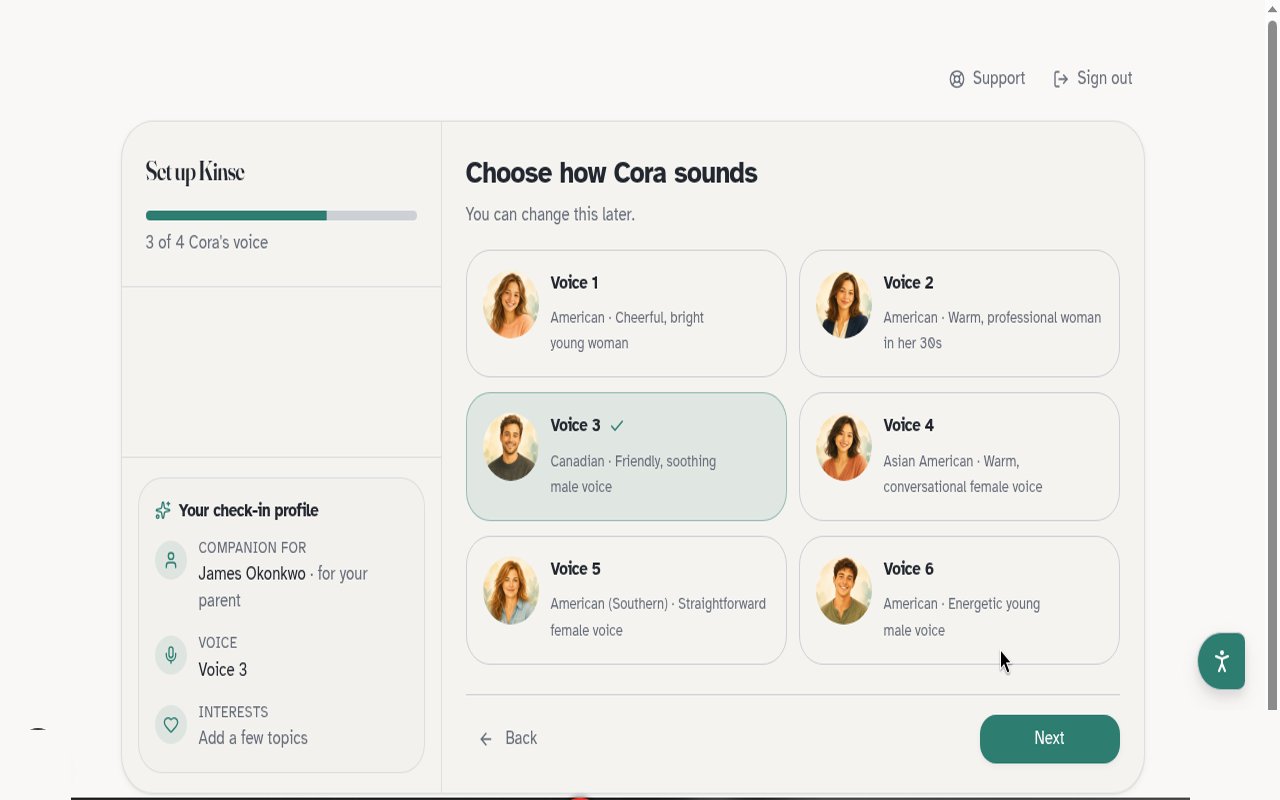
6
What do they love talking about?
On What do they love talking about?, choose interests that help the first call feel familiar. You can add more later.Medications are not part of setup. Add them later from Calls → Medications.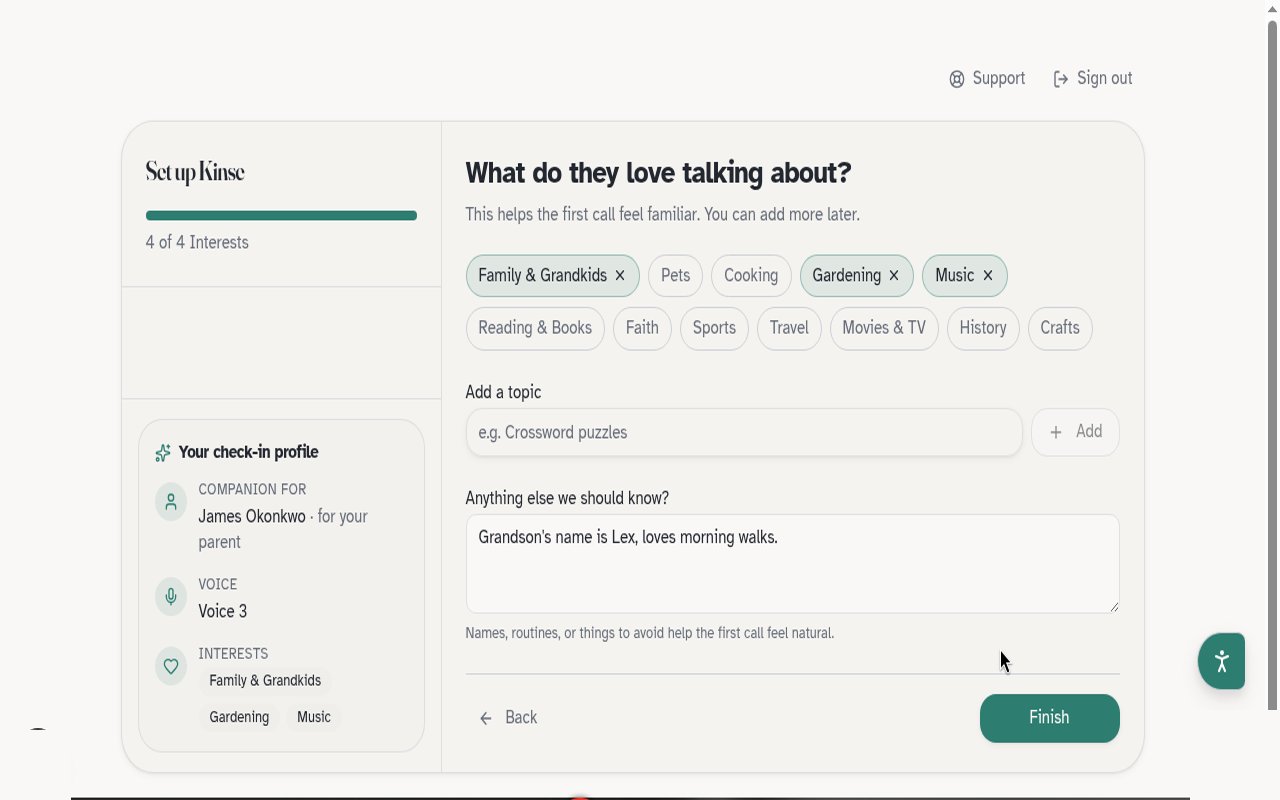
7
Set check-in times in the app
Check-in call times are not set during account setup. After you land in the home page, open Calls → Check-ins and choose when Kinse should place phone check-ins each week.Times use their local time. You can add, edit, or remove check-in times anytime. How many check-ins you can schedule per week depends on your plan (Essentials: 3, Everyday: 7).Cora will not call until you set a time.
8
Choose a plan
Complete setup and go to your home page. To start outbound phone check-ins, open Billing inside Settings and choose Essentials or Everyday.Once a plan and check-in times are set, Kinse places calls on the schedule you chose. Cora handles the conversation on the phone.